Troubleshooting The Office 365 Report Phishing Add-In: Missing Button, Com Conflicts, And Fixes

Quick Answer
The Report Phishing and Report Message add-in experiences let users flag fake emails for phishing reporting and training within Office 365. They streamline submission to Microsoft and your SOC, helping Microsoft Defender for Office 365 learn from false positives and false negatives while surfacing user-reported messages in your Security Dashboard.

The Report Phishing and Report Message add-in experiences let users flag fake emails for phishing reporting and training within Office 365. They streamline submission to Microsoft and your SOC, helping Microsoft Defender for Office 365 learn from false positives and false negatives while surfacing user-reported messages in your Security Dashboard. In modern Outlook clients, this capability also surfaces as the built-in Report button (the “Reporting in Outlook” experience), which consolidates Junk, Phishing, and Not Junk.
Supported Outlook clients and button locations:
- Windows classic Outlook (Win32) :
On the Home ribbon, look for the built-in Report button or a Report Message group
. Within a message window, the Report button appears on the Message tab. If the Report Message or Report Phishing web add-in is used, it typically appears in the Home ribbon or in the message read pane command bar.
-
New Outlook for Windows (Monarch) : A built-in Report button is in the command bar above the reading pane; use the overflow (…) menu if the ribbon is customized or space is constrained .
-
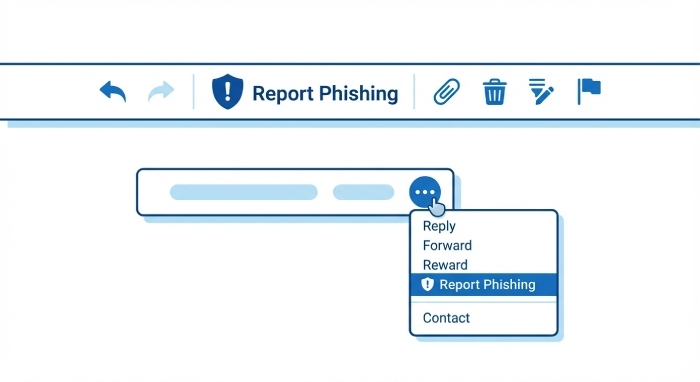
Outlook on the web (OWA) : Open a message, then select the built-in Report button, or go to More actions (…) > Report > Phishing/Junk/Not junk.
-
Outlook for Mac (new UI) : In the message toolbar, select the built-in Report button (or More actions (…) > Report). Legacy Mac clients may surface the Report Message add-in on the ribbon.
-
Outlook mobile (iOS/Android) : Open a message, tap the three dots (…), then choose Report > Phishing/Junk when enabled by policy.
Notes:
-
Shared mailboxes and delegate mailboxes : Visibility of the add-in and the built-in Report button varies by client; OWA supports it most consistently. Windows Classic may not show the add-in in delegate mailboxes .
-
Localization and customization : The label can vary by language (e.g., “Report”/“Report Message”).
Ribbon customization
can move the control into overflow, making it seem “missing.”
Why the button goes missing: deployment, UI, policy, and network blockers
When phishing reporting controls vanish, it’s usually one of the following:
- Deployment gaps : The add-in was never assigned to the right specific users/groups, or a user-level install conflicts with Centralized Deployment. In tenants using Microsoft 365 GCC High or Department of Defense (DoD), the Office Store is restricted; deploy via the Microsoft 365 admin center
Integrated apps.
- UI/ribbon overflow and customization :
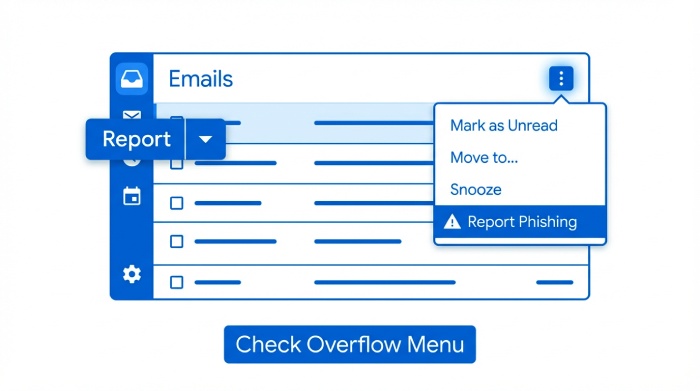
In Outlook clients with narrow ribbon layouts, the built-in Report button can be pushed into overflow
. Custom ribbons or minimized command bars can hide the Report Message control.
-
Unsupported account types : POP/IMAP-only profiles or on-prem Exchange profiles without modern auth can prevent the add-in from loading because it relies on Exchange Online and OAuth authentication via Microsoft Entra.
-
Disabled add-ins : Policy settings like “Block all unmanaged add-ins,” “Disable Office Store,” or Outlook’s “ Slow and Disabled Add-ins ” can suppress web add-in loading.
-
Blocked Office Store / Integrated apps : Tenant-level toggles for Integrated apps or store access in the Microsoft Admin Center can
block installation
or updates of deployed apps.
-
Network/proxy restrictions : If firewalls or SSL inspection block endpoints such as login.microsoftonline.com, outlook.office365.com, officeapps.live.com, or Microsoft CDN domains , the add-in fails to authenticate or render and the built-in Report button may not initialize.
-
Maintenance mode or deprecation messaging : During services maintenance or feature migration, some tenants may see maintenance mode messages. Microsoft continues to expand the built-in Reporting in Outlook experience; keep an eye on Message Center posts for any deprecation guidance that could affect legacy add-in flows.
COM add-in conflicts and ribbon issues: isolate with Safe Mode
Even though Report Message and Report Phishing are web add-ins, third‑party COM add-ins can interfere with the ribbon and suppress web surfaces in classic Outlook:
- Conflicting COM add-ins :
Security/AV, CRM, Adobe, Teams Meeting, or legacy productivity COM components can reflow the ribbon, delay startup, or cause UI hangs that hide the built-in Report button
.
-
Slow and Disabled Add-ins : Outlook monitors COM add-in performance; if flagged, Outlook can auto-disable or defer them. Ironically, the performance manager can also delay web add-in frameworks.
-
Safe Mode isolation : Launch Outlook with outlook.exe /safe. If the built-in Report button or Report Message add-in reappears, you’ve confirmed a COM conflict. Re-enable COM add-ins one at a time to identify the offender . Also check File > Options > Add-ins > Slow and Disabled Add-ins.
Tip: The new
Outlook for Windows
does not load COM add-ins; if the Report control shows up there but not in classic Outlook, you likely have a COM conflict in the classic profile.
Fixes that work: admin deployment, client refresh, policies, and platform notes

Admin-side: Centralized Deployment and Microsoft Defender settings
-
Use Centralized Deployment : In the Microsoft 365 admin center > Integrated apps, deploy the Report Message/Report Phishing add-in to specific users/groups or the whole org. Avoid per-user sideloads that conflict with deployed apps; remove add-in from individual installs if centrally deployed.
-
Scope thoughtfully : Pilot with specific users/groups, then assign users broadly once validated. This supports least privilege and staged rollout.
-
Microsoft Defender for Office 365 configuration : In Microsoft Defender, verify “user reported messages” and Reporting in Outlook settings. Align phishing protection policies so reported items flow to review queues, improving email protection and model training on false positives and false negatives.
-
Compliance environments : In Microsoft 365 GCC High/DoD, Integrated apps and store access are limited; deploy via Centralized Deployment and confirm service availability windows.
RBAC, permissions, and deployment hygiene
- Roles : A Global Administrator can deploy, but prefer role based access control in Exchange Online - e.g., Organization Management or a custom role with app management permissions - to enforce least privilege.

- Authentication : Ensure OAuth authentication is enabled with modern auth in Microsoft Entra. Some clients rely on nested app authentication patterns to render the web add-in and call submission APIs .
Client-side refresh: update, cache, ribbon
- Update clients :
Ensure Outlook clients are current; older builds of Windows classic Outlook and Outlook for Mac had add-in rendering issues
. After you update clients, restart Outlook twice.
-
Clear web add-in cache : Close Outlook. Delete the Office Web Add-ins cache (for example, %LOCALAPPDATA%\Microsoft\Office\16.0\Wef\ on Windows) and Outlook RoamCache (%LOCALAPPDATA%\Microsoft\Outlook\RoamCache). Reopen Outlook to rebuild web add-in state .
-
Reset ribbon/customization : In Outlook Options > Customize Ribbon, reset customizations. Check the
command bar overflow
(…) in New Outlook and OWA for the built-in Report button.
- Profile sanity : In classic Outlook, ensure the primary account is Exchange Online with modern auth. POP/IMAP-only profiles won’t load the add-in reliably.
Network, policy checks, validation, and operations
-
Policy and GPO : In Office policies, allow the Office Store as required for updates, and don’t blanket-block add-ins . Verify “Optional connected experiences” and Integrated apps aren’t disabled. In Outlook, review Slow and Disabled Add-ins to restore anything incorrectly suppressed.
-
URL allowlists and firewalls : Allow Microsoft 365 and Office web add-ins endpoints (for example, login.microsoftonline.com, outlook.office365.com, officeapps.live.com, cdn.office.net, aadcdn.msauth.net). Disable SSL interception for these to avoid security risks and authentication failures .
-
Platform-specific notes :
-
Mac and OWA : Often the most reliable for the built-in Report button; use them as a control in troubleshooting.
-
Mobile : Ensure Reporting in Outlook policies are enabled; mobile shows the control under the message overflow menu.
-
Shared/delegate mailboxes : Prefer OWA to report on shared mailboxes; confirm feature support by client.
-
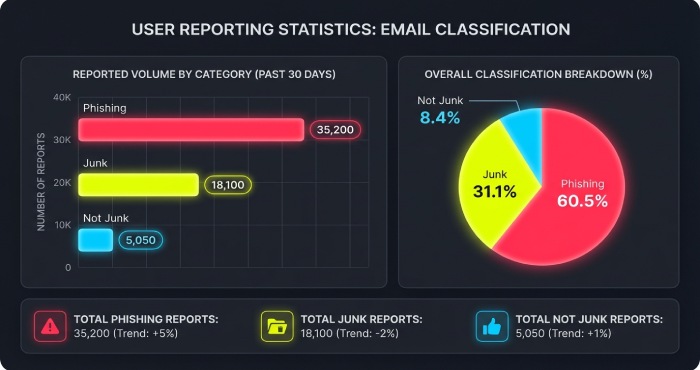
Verify end-to-end : Submit a test phish and a clean message to validate both false negatives and false positives . In Microsoft Defender XDR, confirm user reported messages appear under Submissions and in the Security Dashboard. Ensure automated alerts or triage workflows are in place.
-
Metrics and user education : Track submission volumes, dwell time, and disposition accuracy in Defender for Office 365. Train users on when to use the built-in Report button vs Junk, and how to undo mistakes (Not junk) to reduce false positives.
-
Fallback options : If the add-in is still unavailable, direct users to OWA’s built-in Report button, or forward messages to your abuse/report mailbox. As a last resort, temporarily remove add-in assignments, re-publish via Centralized Deployment, then reassign.
-
Escalation :
If none of the above resolves the issue, capture client build, tenant type, network egress, and HAR logs from OWA
. Open a ticket with Microsoft support via the Microsoft Admin Center, referencing Defender for
Office 365 reporting
features and any maintenance mode notices or deprecation messages you observed.
Topics
General Manager
Founder and General Manager of DuoCircle. Product strategy and commercial lead across DuoCircle's 2,000+ customer base.
LinkedIn Profile →Protect your inbox from phishing attacks
Real-time email security with 60-day free trial. No credit card required.