

When impersonation protection seems ineffective in Office 365/Microsoft 365, the root cause is usually a gap in anti-phishing policies, scope, or mail flow. Modern phishing attacks blend display-name deception, lookalike domains, and compromised partner accounts to evade basic filters. Microsoft Defender for Office 365 adds machine learning-based detection, spoof intelligence, and first contact safety tip capabilities to reduce user impersonation, domain impersonation, and sender impersonation.
If these controls aren’t triggering, revalidate how your policies are configured, what they apply to, and whether unauthenticated sender indicators, safety tips & indicators, and quarantine policy actions are set to enforce—not just audit. Below, use this guide to verify what’s covered, recognize symptoms of failure, confirm prerequisites, configure anti-phish/impersonation settings, and avoid scope and priority pitfalls.
What impersonation protection covers in Microsoft 365
Coverage and signals across EOP and Defender
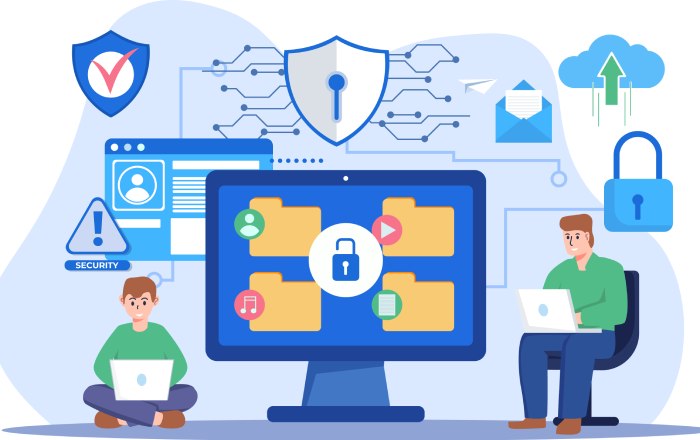
Exchange Online Protection (EOP) includes baseline anti-spoofing protection and anti-phishing policies, but comprehensive impersonation protection is unlocked in Microsoft Defender for Office 365. In EOP, explicit email authentication and email authentication checks (SPF, DKIM, DMARC) underpin composite authentication. Defender augments these with AI-based detection, advanced algorithms, mailbox intelligence, spoof intelligence, and machine learning-based detection tuned to protect high-risk users and brands from phishing attacks.
- EOP: Foundational anti-phishing policies, anti-spoofing protection, unauthenticated sender indicators, and basic safety tips & indicators.
- Microsoft Defender for Office 365: Enhanced user impersonation, domain impersonation, and sender impersonation coverage; mailbox intelligence signals; phishing thresholds tuning; first contact safety tip; and robust spoof intelligence insight surfaced in Security.microsoft.com.
Mailbox intelligence evaluates historical sender-recipient context across cloud mailboxes to spot anomalies. Combined with spoof intelligence and composite authentication, Defender can quarantine the message or reject the message before risky content reaches Mailboxes or Distribution Groups.
User/domain/brand impersonation focus
- User impersonation: Detects when an attacker spoofs an executive (e.g., an Executives group), colleague, or VIP via display-name or lookalike address. Microsoft Defender for Office 365 correlates machine learning-based detection and mailbox intelligence to flag these phishing attacks.
- Domain impersonation: Evaluates lookalike sender domains and near-match accepted domains to stop brand misuse and partner lookalikes. Anti-phishing policies use phishing thresholds and spoof intelligence to differentiate mistakes from malicious spoofing.
- Sender impersonation: Identifies deceptive combinations of From/Sender headers, composite authentication failure, and unauthenticated sender indicators to block attempts that mirror trusted senders without passing email authentication checks.
Spoof intelligence and authentication alignment
Spoof intelligence analyzes sender domains across your accepted domains and external partners, recommending allow/block entries in the Tenant Allow/Block List when legitimate third-party senders legitimately spoof on your behalf. Align this with DMARC policy (via a DMARC TXT record): where possible, publish p=quarantine or p=reject and ensure DKIM/SPF alignment. These steps strengthen composite authentication and reduce false positives while still catching sophisticated spoofing.
Recognizing when it’s not working: symptoms, false negatives, and scenarios
Symptoms and scenarios you’ll see

When impersonation protection isn’t effective, the patterns are consistent:
- Executive display-name spoofs bypass anti-phishing policies and land in the inbox, with only minimal unauthenticated sender indicators shown.
- Partner lookalike domains evade detection because phishing thresholds are too lenient, trusted domains are misconfigured, or spoof intelligence isn’t applied.
- Forwarded mail through third-party gateways or Connectors loses composite authentication, causing both false negatives and inconsistent safety tips & indicators.
- Users don’t see the first contact safety tip on novel senders, reducing awareness during high-risk first touches.
Frequent false positives are also a signal of mis-tuned impersonation protection—over-broad trusted senders or trusted domains can mask real phishing attacks, while overly strict thresholds can push legitimate messages to Quarantine or the junk email folder.
Executive display-name spoofs
- Classic user impersonation where “CEO” requests urgent payment. If mailbox intelligence and machine learning-based detection don’t trigger, review impersonation settings, protected users, and the action to quarantine the message. Validate spoof intelligence for the sender domains involved.
Partner lookalikes and forwarded mail
- Attackers register near-match domains to your suppliers, exploiting weak domain impersonation settings. If messages are forwarded via third-party systems, enable Enhanced Filtering for Connectors so Exchange Online preserves Composite authentication. Without it, composite authentication failure can lead to both missed phishing attacks and noisy false positives.
Prerequisites and environment sanity checks
Sanity checks and environment prerequisites
Before deep remediation:
- Licensing and presets: Verify Microsoft Defender for Office 365 licenses for targeted Mailboxes and Microsoft 365 users. Apply preset security policies (Standard or Strict) in Security.microsoft.com under threat policies. Parts of these presets operate like a read-only policy baseline; layer custom policies for exceptions.
- Secure by Default: Confirm Secure by Default features are on, including unauthenticated sender indicators and the first contact safety tip. If the first contact safety tip is missing, check that message recipients aren’t excluded by recipient filters.
- Group scope integrity: Confirm users, groups, and domains targeting includes Distribution Groups, Mail-Enabled Security Groups, Microsoft 365 Groups, and dynamic distribution groups that actually contain your VIPs and message recipients. Use Microsoft Entra ID to validate membership of the Executives group.
- Hybrid and gateways: If using third-party gateways or Connectors, follow mail flow best practices. Enable Enhanced Filtering for Connectors to preserve the authentication context for Defender decisions. Misordered Connectors can strip headers and break explicit email authentication and DMARC evaluation.
- DMARC posture: Publish and monitor your DMARC policy via a DMARC TXT record. Where feasible, move to p=quarantine or p=reject for your accepted domains to harden anti-spoofing protection and support spoof intelligence decisions.
- Tenant Allow/Block List hygiene: Review allow/block entries and blocked senders. Overuse of Tenant Allow/Block List for trusted senders or trusted domains can mask sender impersonation and increase false negatives.

Configuring anti‑phishing and impersonation policies correctly
Configuration essentials: protected entities, actions, and user experience
In Security.microsoft.com, open threat policies and review anti-phishing policies and impersonation settings:
- Protected users and domains:
- Add executives and finance approvers explicitly for user impersonation. Use an Executive group so membership updates propagate.
- Add your primary and brand domains for domain impersonation, including accepted domains and critical partner domains to monitor.
- Keep trusted senders and trusted domains minimal. Over-broad trust invites sender impersonation abuse and raises false negatives.
- Machine learning-based detection and mailbox intelligence:
- Ensure mailbox intelligence is enabled to learn normal communication patterns. This strengthens the detection of novel phishing attacks and reduces false positives.
- Tune phishing thresholds gradually. Start at Standard, then increment to Aggressive for VIPs. Document changes to correlate with the quarantined messages volume.
- Actions and user cues:
- Set the policy to quarantine the message for high-confidence user impersonation and domain impersonation; use reject the message for obvious fails with composite authentication failure when DMARC policy = p=reject.
- Configure a quarantine policy suitable for executives with a requirement to manage quarantined messages promptly. Enable quarantine notifications and provide a workflow to release quarantined messages when appropriate.
- Enable the first contact safety tip and ensure unauthenticated sender indicators display reliably. These safety tips & indicators materially reduce human risk on first-touch phishing attacks.
- Exceptions and routing:
- Use policy conditions and recipient filters to target only relevant populations; add recipient exceptions sparingly.
- Avoid blanket policy exceptions for sender domains. Instead, rely on spoof intelligence and the Tenant Allow/Block List with precise allow/block entries when business-justified and monitored.
Also, verify how quarantined messages escalate: train help desk to manage quarantined messages and know when to release quarantined messages versus letting the junk email folder handle low-confidence hits.
Scope and policy priority pitfalls
Even strong settings fail if the scope and order are wrong:
- Policy order and overlap: Custom policies can override a default policy or preset layers. Place high-sensitivity custom policies above broader ones. If testing, use test mode only briefly; lingering test mode explains “not working” reports.
- Who the policy applies to: Confirm all cloud mailboxes for target users are included; many misses occur because only a subset of Microsoft 365 Groups or Distribution Groups were scoped. Recheck users, groups, and domains targeting after organizational changes.
- Preset vs custom conflict: Preset security policies may lock specific elements in a read-only policy experience. If behavior differs from expectation, check which preset is in effect and whether a custom policy with higher priority narrows or expands scope unintentionally.
- Gateways and authentication: If messages arrive via Connectors, confirm Enhanced Filtering for Connectors is enabled so Defender sees original sender domains and headers. Without it, spoof intelligence might not engage, and composite authentication signals degrade.
- Allow/Block drift: Excess trusted senders and trusted domains in Tenant Allow/Block List can suppress impersonation protection. Periodically audit blocked senders versus current business needs and remove stale allow entries. Cross-reference spoof intelligence insight for recommended changes.
By aligning impersonation settings, anti-phishing policies, spoof intelligence, and user-facing cues like the first contact safety tip and unauthenticated sender indicators, you create layered defenses. Revisit phishing thresholds regularly, validate DMARC alignment, and keep trusted senders and trusted domains lean to balance detection efficacy and false positives while maintaining strong, modern protection in Microsoft Defender for Office 365 and Exchange Online.
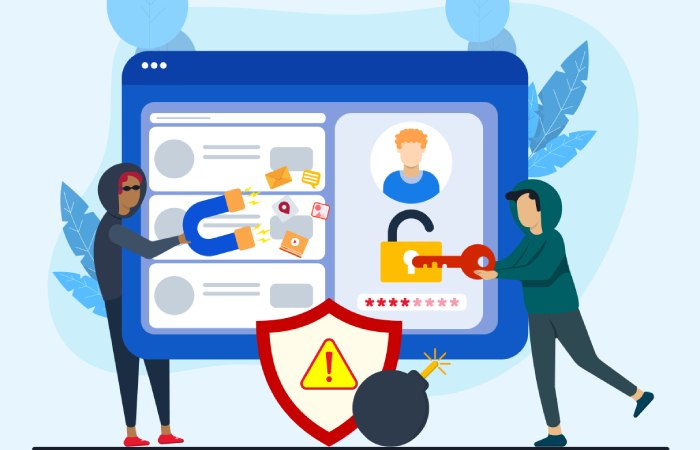
Authentication and spoofing foundations
Aligning SPF, DKIM, DMARC, and composite authentication
Effective impersonation protection begins with explicit email authentication. Align your SPF and DKIM signing domains with your From domain, then publish a DMARC TXT record that enforces alignment and reports failures. In Exchange Online, composite authentication aggregates these email authentication checks with reputation, sender history, and content signals to help Microsoft Defender for Office 365 decide whether to quarantine the message or reject the message during phishing attacks.
- SPF verifies sending IP authorization; DKIM validates message integrity; DMARC ties them to the visible From. When alignment holds, composite authentication is strong; when composite authentication failure occurs, anti-phishing policies can increase phishing thresholds and surface unauthenticated sender indicators and a first contact safety tip.
- As you move from monitoring to enforcement, use DMARC policy rollouts that respect mail flow best practices and minimize false positives. Ensure accepted domains in Microsoft 365 are correctly configured, and that cloud mailboxes and Connectors do not break authentication.
DMARC policy and enforcement stages
Start with p=none and monitor aggregate reports to identify legitimate sources that need DKIM keys or SPF includes. As coverage improves, graduate to a DMARC policy of p=quarantine to direct likely abuse to Quarantine. Once you reach high alignment and low false positives, set p=reject for maximum anti-spoofing protection.
Choosing p=quarantine vs p=reject
- p=quarantine is ideal when you still expect some legacy systems or third-party senders to fail alignment. Pair it with a strong quarantine policy, so quarantined messages aren’t silently routed to the junk email folder.
- p=reject offers the best defense against domain impersonation and sender impersonation once you have confidence that legitimate sources pass alignment consistently.
Spoof intelligence and lookalike domain defenses
Not all spoofing involves failing DMARC. Attackers use lookalike domains and display name tricks to drive user impersonation. Microsoft Defender for Office 365 incorporates spoof intelligence to detect same-tenant spoofing, cross-domain abuse, and lookalike attempts that evade simple authentication checks.
Allow/block decisions and spoof intelligence insight
Analyze Spoof intelligence insight in Security.microsoft.com to see which sender domains and IPs are being allowed or blocked. Use allow/block entries sparingly—overuse increases false positives or creates unsafe blind spots. Where necessary, use policy conditions and policy exceptions at a granular level (for specific users, groups, and domains) rather than blanket allow rules.

Managing trusted senders and trusted domains safely
- Maintain trusted senders and trusted domains in anti-phishing policies only for well-validated partners, ideally those that pass explicit email authentication. Regularly review trusted entries to prevent drift.
- Pair these listings with impersonation settings to guard against user impersonation and domain impersonation of executives and finance teams, and ensure the first contact safety tip and unauthenticated sender indicators remain visible where appropriate.
Bypass and override culprits that neuter protection
Common bypasses that undermine impersonation protection
Several mail flow choices can neutralize machine learning-based detection and advanced algorithms in Microsoft Defender for Office 365:
- Transport rules setting SCL -1: This suppresses anti-phishing policies, spoof intelligence, and safety tips & indicators, leading to missed sender impersonation. Avoid broad SCL -1 rules.
- Safe sender/allow lists: Excessive dependence on client-side safe senders or tenant-level allow/block entries in the Tenant Allow/Block List can let phishing attacks in. Vet allow/block entries and remove those that conflict with threat policies.
- IP allowlists and inbound connectors: Blanket allowlisting of partner IPs or routing through on-premises gateways can bypass email authentication checks. If you must use connectors, enable Enhanced Filtering for Connectors to preserve composite authentication.
- Default policy reliance: The default policy is read-only in certain areas and often too permissive. Create custom policies with clear recipient filters and recipient exceptions to target executives, the Executives group, and high-risk roles, including Distribution Groups, Mail-Enabled Security Groups, dynamic distribution groups, and Microsoft 365 Groups.
Enable Enhanced Filtering for Connectors and follow mail flow best practices
Where hybrid or third-party gateways are required, turn on Enhanced Filtering for Connectors. This allows Defender to see the true sender IP and apply machine learning-based detection, spoof intelligence, and anti-phish verdicts correctly. Review Connectors, verify that sender domains preserve DKIM, and avoid rewriting headers that cause composite authentication failure. Together, these steps protect accepted domains and prevent unsafe bypasses while maintaining low false positives.
Tracing a missed impersonation: message headers and tools
Use Microsoft 365 investigation tools

When a suspected miss occurs, triage quickly in Security.microsoft.com:
- Message Trace and real-time detections (Threat Explorer) show delivery path, policy outcomes, and quarantined messages.
- Submissions let you report misses and false positives to improve machine learning-based detection and phishing thresholds.
- The Header Analyzer surfaces ARC, Authentication-Results, and SCL, helping you validate whether spoofing or user impersonation was detected.
Document whether the message recipients include protected users, groups, and domains, and check which phishing protection policies applied. Cross-reference with Spoof intelligence insight to see if a temporary allow listing or Tenant Allow/Block List entry influenced the outcome.
Read headers for decisive signals
- Authentication-Results: Confirm SPF, DKIM, and DMARC outcomes and alignment. If DMARC fails but the message wasn’t blocked, look for transport rules or connectors that bypassed enforcement.
- ARC: Authenticated Received Chain can indicate if an intermediary altered authentication; weigh ARC results against composite authentication.
- SCL and anti-phish verdicts: A low SCL from an SCL -1 rule, or a policy exception, often explains why unauthenticated sender indicators or the first contact safety tip were absent. If the system flagged domain impersonation or sender impersonation but still delivered to the inbox, check the quarantine policy action and policy conditions.
Hardening recommendations and proactive operations
Hardening recommendations to close gaps
- Prefer quarantine over junk: Configure anti-phishing policies to quarantine the message for high-confidence phishing attacks and user impersonation attempts. This reduces user exposure and improves management of quarantined messages workflows.
- Restrict end-user releases: Limit the ability to release quarantined messages; require admin review to reduce false positives from risky releases. Use quarantine notifications to inform users while preserving control.
- External tagging and indicators: Keep safety tips & indicators enabled, including the first contact safety tip and unauthenticated sender indicators. These cues meaningfully reduce successful phishing attacks without inflating false positives.
- Domain permutation watchlists: Add lookalike and homoglyph variations of your brand to watchlists; monitor sender domains that resemble your accepted domains to prevent domain impersonation.
- Brand impersonation coverage: Enable brand protection features in Microsoft Defender for Office 365 and Exchange Online to detect sender impersonation of well-known brands.
- Zero-hour Auto Purge (ZAP): Ensure ZAP is on to retroactively remove messages if machine learning-based detection or AI-based detection learns about new campaigns after delivery.
- Outcomes tuned to risk: For high-risk personas (Executives group, finance approvers), set stricter phishing thresholds and enforce reject the message on composite authentication failure.
Proactive operations and validation
- Alerting and reports: Use Security.microsoft.com alerts, spoof intelligence reports, and Threat Explorer dashboards to track spikes in phishing attacks, spoofing attacks, and false positives. Calibrate threat policies and custom policies accordingly.
- Periodic policy reviews: Quarterly, review impersonation settings, trusted senders, and trusted domains. Remove stale allow/block entries in the Tenant Allow/Block List and validate blocked senders still merit blocking.
- Controlled tests and simulations: Run attack simulations against cloud mailboxes to validate anti-phishing policies, quarantine policy actions, and safety tips. Include scenarios for user impersonation, domain impersonation, and sender impersonation.
- User training and Report Phish: Train employees to heed unauthenticated sender indicators and the first contact safety tip. Promote the Report Phish add-in to feed Submissions, lower false positives, and refine phishing thresholds via advanced algorithms.
- Ongoing allow/block hygiene: Maintain allow/block entries with expiration dates and ownership, and audit policy exceptions. Align Microsoft Entra ID groups (Distribution Groups, Mail-Enabled Security Groups, Microsoft 365 Groups) with recipient filters so message recipients’ coverage stays current as Mailboxes and teams change.
By integrating authentication rigor, disciplined mail flow, and continuous tuning in Microsoft Defender for Office 365, organizations dramatically strengthen impersonation protection while keeping false positives low and maintaining effective safety tips & indicators for end users.
Key Takeaways
- Strong DMARC alignment plus composite authentication underpins effective impersonation protection in Microsoft Defender for Office 365.
- Avoid bypasses like SCL -1 rules and broad allowlists; use Enhanced Filtering for Connectors and precise policy conditions.
- Investigate misses with Message Trace, Threat Explorer, Submissions, and header analysis (Authentication-Results, ARC, SCL).
- Favor quarantine over junk, restrict end-user releases, and keep safety tips & indicators (including first contact safety tip) enabled.
- Continuously review anti-phishing policies, trusted senders/domains, and Tenant Allow/Block List hygiene to minimize false positives.