

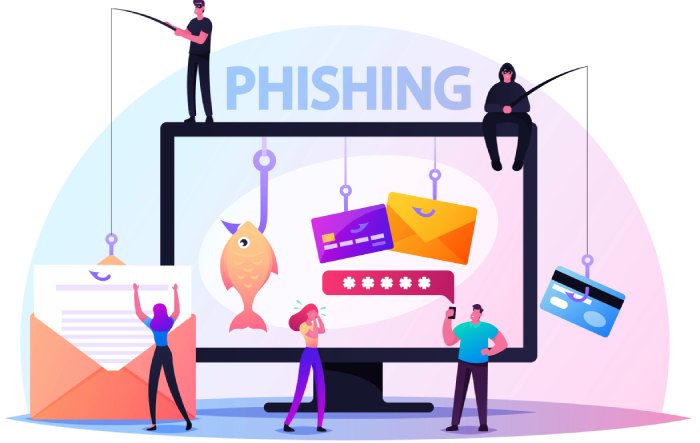
Phishing emails remain the most prevalent vehicle used by cybercriminals to compromise both consumer and enterprise accounts. Using highly deceptive methods, attackers craft messages designed to steal your personal information, bank information, and credentials such as passwords or membership card details. Their objective is often identity theft or financial gain, and the techniques they employ grow more sophisticated each year.
Social Engineering and Deceptive Messaging
At the heart of every phishing scam is social engineering. Cybercriminals manipulate emotions through urgent calls to action, hoping to coerce recipients into clicking suspicious links or downloading malicious attachments. You may receive an unsolicited email alerting you to a fake order scam or a bill statement that requires immediate action, using fear or curiosity to prompt rash decisions.
Common approaches include:
- Impersonation of Trusted Brands: Attackers often mimic legitimate websites and email domains belonging to Microsoft 365, Outlook, Office, or even organizations like banks or online retailers. These fake messages may include branding and logos taken from official sources, making differentiation challenging.
- Filter Evasion Tactics: A phishing email may originate from a new sender or infrequent sender, using slightly altered addresses (mismatched domains) to bypass email security checks. This approach tries to exploit gaps in anti-phishing and advanced threat protection (ATP) systems.
- Attachment and Link Exploits: Malicious attachments can compromise your device, while hyperlinks often point to phishing websites or fake websites designed to harvest your credentials. Always hover over links before clicking to check the destination and verify the sender’s authenticity.
Recognizing the Red Flags: How to Identify Suspicious Emails
Awareness and vigilance are critical to protect yourself from phishing attempts. Detecting the warning signs of a phishing email can prevent catastrophic user protection failures or costly data breaches for businesses and individuals alike.
Key Indicators of a Phishing Scam
1. Mismatched and Unfamiliar Email Domains
A telltale sign is the use of generic greetings (“Dear Customer”) instead of personalized emails, as well as mismatched domains that don’t match the official organization website. For instance, a message from what should be the Microsoft Store or Xbox support might arrive from a suspicious external sender with a misleading domain name.
2. Urgent Emails and Calls to Immediate Action
Phishing scams exploit urgency and chaos, asking you to update your bank information, reset your passwords, or click attachments “immediately” due to an account compromise. Look for language promoting panic, promising limited-time offers, or threatening account closure—these are strong indicators of phishing tactics.
3. Suspicious Links and Attachments
Inspect any embedded URLs by hovering over links without clicking—if the destination is a fake website or doesn’t match the legitimate company’s address, it is likely part of a scam detection evasion scheme. Be equally wary of attachments, even those purporting to be invoices, OneDrive, or Teams messages: opening these may install malware or ransomware.
4. Spelling Errors and Bad Grammar
Well-established organizations like Microsoft, Azure, and the Small Business Portal follow strict professional standards for outbound communication. Therefore, emails containing spelling errors, bad grammar, or inconsistent formatting should raise suspicion.
5. Other Warning Features
- Unsolicited requests for personal information
- First-time sender or external sender notifications in your Outlook banner
- Fake messages that reference fake order scams, call center scams, phone scams, or text message scams
- Requests to enter sensitive data on non-secure platforms
The Role of Email Security Software
In today’s threat landscape, relying solely on individual awareness is not enough. Robust email security solutions form the backbone of threat protection and phishing protection strategies. Organizations and IT admins can deploy sophisticated platforms, such as Microsoft 365’s advanced threat protection (ATP), to filter and quarantine high-risk messages automatically.
Capabilities of Modern Email Security Platforms
Email Authentication and Protection Features
- ATP and Anti-Phishing Filters: These systems scrutinize emails for suspicious links, suspicious attachments, filter evasion, and mismatched domains. They recognize indicators like first-time sender, external email source, and generic greetings.
- Real-Time Deletion and Reporting: Tools allow users to delete suspicious messages or report phishing and scams directly from Outlook or Microsoft Teams interfaces, streamlining scam reporting for IT admins.
- Integration Across Services: Microsoft Copilot, for example, leverages artificial intelligence to analyze communication patterns across Outlook, OneNote, Surface Hub, and even Dynamics 365, flagging anomalies for further review.
User Protection and Security Awareness Tools
Companies bolster their defense by incorporating security awareness training, empowering users to identify phishing website attempts, delete suspicious messages, and recognize common phishing scam red flags.
Multi-Factor Authentication: Adding Layers of Security
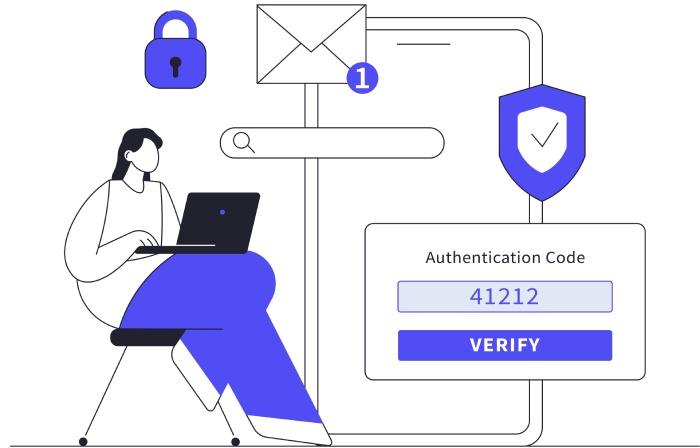
Multi-factor authentication (MFA) is a critical defense mechanism that drastically reduces the risk of unauthorized account access, even if cybercriminals obtain your passwords through a phishing email. By requiring two or more forms of identity verification—such as a text message code and a password—MFA blocks most identity theft and account compromise attempts.
Why MFA Matters for Email Security
MFA acts as a safeguard for sensitive systems (Office, Outlook, Dynamics 365, Visual Studio, Power Platform), especially in environments where single sign-on access unifies several services, such as Microsoft 365, OneDrive, and Xbox. When combined with device-level protections on Windows and Surface products, MFA offers an additional layer that frustrates even the most persistent cyber attackers.
Implementing MFA Best Practices
- Encourage the use of authentication apps on trusted devices.
- Regularly prompt users to update authentication factors.
- Integrate MFA prompts with security awareness campaigns for greater adoption.
Keeping Operating Systems and Email Clients Updated
A common vector for phishing scams involves exploiting vulnerabilities in outdated operating systems and email clients. Cybercriminals often target users who have not applied critical updates to Windows, Office, Outlook, or OneNote, as these users remain susceptible to malware delivered via phishing email attachments or links.
The Importance of Patching and Updates
Security Patches and Zero-Day Protection
Device manufacturers and software providers, including Microsoft, frequently issue updates that address known vulnerabilities. Applying these updates ensures that user protection levels remain robust against evolving phishing website tactics and malware distribution methods.
Best Practices for Update Hygiene
- Enable automatic updates in Windows and regularly check for patches on Microsoft Store apps, Surface devices, and organization endpoints.
- IT admins should deploy group policies via Azure or Microsoft Power Platform to enforce update compliance across networks.
- Keep security tools, such as ATP modules and anti-phishing filters within Outlook and Teams, up-to-date to ensure Safer messaging across organizational channels.
By adopting a layered strategy combining user vigilance, anti-phishing technologies, multifactor authentication, and diligent software maintenance, individuals and organizations can dramatically enhance their threat protection posture and protect themselves more effectively against the persistent risk of phishing scams.
Educating Yourself and Your Team: Security Awareness Training
A foundational aspect of protecting yourself and your organization from a phishing email or an advanced phishing scam is robust security awareness training. Cybercriminals increasingly rely on social engineering, manipulating human behavior rather than defeating technical barriers. Ensuring all users—from executives to new hires—are informed about the latest phishing email tactics and detection methods significantly lowers the risk of compromised personal information and identity theft.
Core Training Topics
- Identifying Suspicious Elements: Employees must know how to recognize urgent calls to action, mismatched domains, generic greetings, and spelling errors or bad grammar within a potential phishing scam. Training often includes real-world examples and simulated scam detection exercises targeting attachments, suspicious links, and fake website redirects.
- Understanding Email Domain Risks: Phishing attacks frequently leverage lookalike or mismatched domains. Users should learn to verify sender addresses, recognize first-time senders and external senders (often highlighted with an Outlook banner or ATP notification in Microsoft 365 environments), and hover over link addresses to display a potential phishing website before clicking.
- Safer Messaging Tools: Teach staff how to use tools within Microsoft 365, Outlook, Teams messages, and OneNote to report phishing or report a scam quickly. Emphasize the importance of never disclosing passwords, bank information, or membership card numbers via unsolicited email—even when the email appears to be from a legitimate organization website.
The Role of IT Admins and Trusted Advisors
IT admins and trusted advisors ensure ongoing user protection by updating security awareness modules, monitoring for external email threats, and sharing threat protection best practices. They guide users on how to handle new sender requests, spot fake messages, and leverage anti-phishing solutions embedded in Microsoft and Azure platforms.
Best Practices for Handling Suspicious Emails
Every individual in an organization plays a role in filtering out phishing emails and thwarting cybercriminals’ attempts to steal personal information or sensitive data.
What to Do When You Receive a Suspicious Email
- Stop and Verify: Never respond to urgent emails requesting immediate action without verification. Use an independent channel—such as an official organization website or a direct phone call—to confirm legitimacy.
- Check for Red Flags: Review the sender’s email domain, look for mismatched domains, external sender warnings, and generic greetings in the message. If the message includes suspicious links or an unexpected attachment from an infrequent sender, exercise extreme caution.
- Examine Content Carefully: Fake orders, bill statements, and bank information requests in personalized emails may prompt disclosure of private data. Inspect all links by hovering over them to ensure they direct to a legitimate website, not a phishing website.
- Leverage Security Features: Utilize Outlook banners, ATP, and advanced threat protection notifications in Microsoft 365. Delete suspicious messages without clicking on any links or downloading any attachments.
Reporting and Escalation
- Prompt Reporting: Use the “report phishing” or “report scam” features within Outlook, Microsoft 365, or relevant security platforms. Reporting enables IT departments to block further attempts and enhances overall email security.
- IT Admin Escalation: If in doubt, forward the suspect email to your IT admin or security team for scam detection and further investigation. This is essential for filter evasion cases, where scam emails circumvent anti-phishing tools.
How to Respond if You’ve Fallen Victim to a Phishing Attack
Phishing scams can be highly convincing. If you suspect or know you’ve interacted with a malicious phishing email, swift action is critical to protect yourself and limit damage to others.
Immediate Steps Following a Phishing Incident
- Disconnect and Document: Disconnect affected devices from the network to prevent cybercriminals from accessing broader systems or OneDrive, Surface Hub, HoloLens, and Xbox environments.
- Change Compromised Credentials: If you entered passwords or exposed bank information, change them immediately on all related accounts. Enable multi-factor authentication via Microsoft Copilot or Office to add a further security layer.
- Notify Appropriate Entities: Report the scam to your IT admin, organization, and, if needed, banking institutions. File a scam report through your national scam reporting body. This can help recover compromised assets and prevent future attacks.
- Monitor Personal Information: Watch for unusual activity in accounts and check bill statements and membership card charges. Consider placing fraud alerts with credit agencies to catch early indications of identity theft.
Further Remediation
- Scan Devices: Run anti-malware and advanced threat protection scans using Microsoft Power Platform or Windows Defender to cleanse any residual malware.
- Review Security Settings: Audit security and notification settings in Microsoft 365, Outlook, Teams, and Dynamics 365 to identify unauthorized changes.
The Evolving Threat: Emerging Trends in Email Phishing
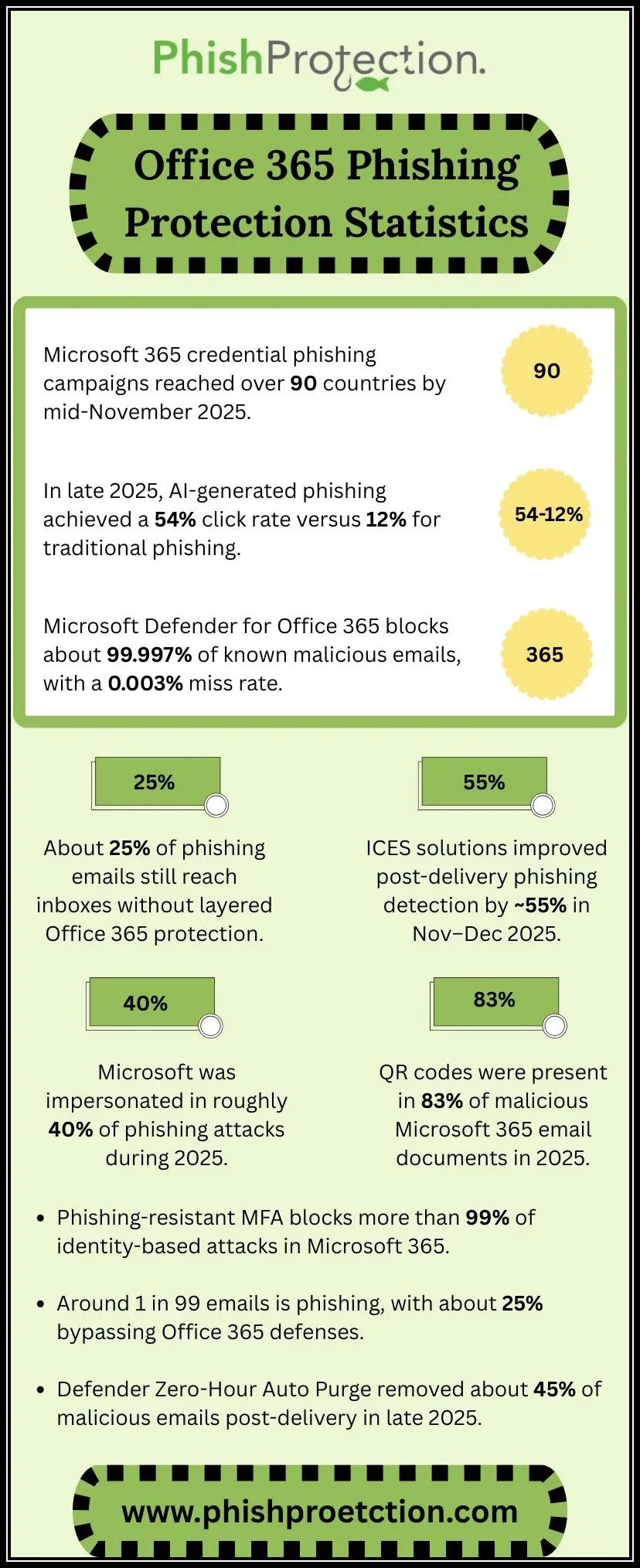
Phishing attacks continually adapt as cybercriminals incorporate new technology, bypass spam filters, and enhance their social engineering techniques.
Notable Trends in 2024
- Highly Personalized Emails: Attacks increasingly use data scraped from social networks, Microsoft Store, Small Business Portal, Copilot AI models, and advanced reconnaissance to craft believable messages that include accurate personal or organizational details.
- Multi-Channel Attacks: Cybercriminals now launch coordinated phone scam, text message scam, and call center scam campaigns alongside classic phishing emails, often using fake messages, scam orders, or invoice fraud to dupe users.
- Sophisticated Filter Evasion: Modern phishing scams bypass traditional spam engines using obfuscated attachments, encrypted messages, and carefully altered legitimate organization domains.
- Targeting Collaboration Platforms: Attackers exploit Teams messages and SharePoint/OneDrive links within Microsoft 365 to deliver phishing websites, tricking recipients into giving up credentials or confidential information.
- Exploitation of New Features: As businesses embrace Microsoft Copilot, Azure, and Visual Studio, threats increasingly target these environments, posing as automated system messages or technical support contacts.
Building a Proactive Defense: A Checklist for Ongoing Email Security
An active, layered approach to email security is the best defense against the evolving tactics of cybercriminals. Use this checklist to help protect yourself, your team, and your organization from phishing email attacks and related risks.
Email Security Checklist
- Ensure Regular Security Awareness Training: Frequently update security training to include the latest phishing scam tactics, social engineering strategies, and scam detection tips for new technologies and platforms.
- Keep Email Authentication Protocols Updated: Deploy and maintain DMARC, DKIM, SPF, and other email authentication standards across all business domains.
- Continuously Monitor and Upgrade Threat Protection: Employ advanced threat protection, ATP, and anti-phishing tools provided by Microsoft 365, Azure, and third-party vendors. Ensure these are fully integrated with Outlook, Teams, and OneNote.
- Validate Suspicious Communications: Always verify sender identity for first time senders, infrequent senders, and external senders. Scrutinize links, attachments, and requests for personal information or immediate action.
- Promote User Protection Best Practices: Encourage users to never respond to unsolicited email, delete suspicious messages, and use built-in “report phishing” features. Maintain clear reporting channels for scam reporting.
- Involve IT Admins for Safer Messaging: IT admins should regularly assess and refine email security configurations, monitor for sudden surges in advanced phishing emails, and respond rapidly to scam reporting incidents.
FAQs
What are the most common signs of a phishing email?
Look for suspicious links, generic greetings, mismatched domains, spelling errors, bad grammar, and urgent calls to action requesting personal information or bank information. Messages from first-time senders or with unexpected attachments are also red flags.
If I accidentally clicked on a link in a phishing email, what should I do?
Disconnect your device from the network immediately and inform your IT admin. Change any passwords that may have been compromised and monitor your accounts for suspicious activity.
How does email authentication help prevent phishing scams?
Email authentication protocols like DKIM, DMARC, and SPF prevent cybercriminals from spoofing legitimate email domains. This helps ensure only verified senders can deliver messages, reducing fake messages and filter evasion attempts.
Why should I report phishing emails instead of just deleting them?
Reporting phishing emails helps your organization’s IT team enhance scam detection and block future attacks. It also supports broader scam reporting efforts to help protect yourself and others.
How can I tell if a link is safe in an email?
Always hover over the link (without clicking) to preview the destination. Compare it to the legitimate website’s URL and watch for minor differences that might indicate a phishing website.
Are collaboration tools like Teams and OneNote also vulnerable to phishing scams?
Yes, cybercriminals increasingly use Teams messages and OneNote shares within Microsoft 365 to distribute malicious links or attachments. Remain vigilant for suspicious requests or urgent emails in any collaboration platform.
Key Takeaways
- Thorough and regular security awareness training is essential to help employees detect phishing email tactics and avoid phishing scams.
- Always examine the sender, email domain, attachments, suspicious links, and content integrity in emails, especially those with urgent calls to action or generic greetings.
- Utilize advanced threat protection, ATP, and built-in anti-phishing tools offered by solutions like Microsoft 365 and Outlook for proactive scam detection.
- Report phishing or scam emails through official channels—don’t simply delete suspicious messages—and encourage organization-wide user protection.
- Stay informed about evolving phishing tactics, including attacks via collaborative platforms like Teams messages and OneDrive, to protect yourself and your organization from identity theft and loss of personal information.