

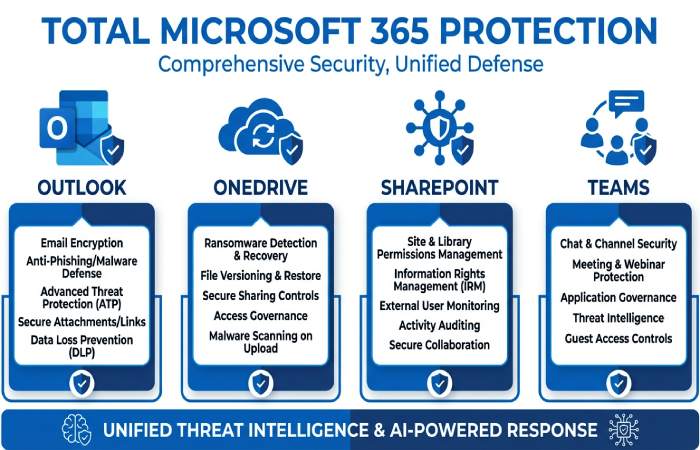
Microsoft Defender for Office 365 is the cloud-native layer of professional-grade protection that safeguards email and collaboration data across Microsoft 365. It delivers advanced virus protection and phishing defenses for Outlook, plus malware and ransomware controls for OneDrive, SharePoint, and Microsoft Teams. Unlike a traditional antivirus that runs only on endpoints, it provides online protection at the service edge, using real-time monitoring to stop threats before they reach user inboxes or shared files.
Plans, Workloads, and Coverage
- Plans: Defender for Office 365 Plan 1 (P1) focuses on anti-phishing, Safe Links, and Safe Attachments. Plan 2 (P2) adds Threat Explorer, Automated Investigation and Response (AIR), hunting, and enhanced reporting.
- Workloads: Coverage spans Exchange Online (Outlook), OneDrive cloud storage, SharePoint, and Teams, with policies administered centrally in the Microsoft 365 security dashboard.
- Integrations: It works seamlessly with Microsoft Defender for Endpoint and Azure signals to correlate email-borne attacks with device security events, improving security status across business devices and work devices.
Intelligence, Signal Sharing, and Ecosystem
Microsoft Defender uses Microsoft’s global threat intelligence, telemetry from Windows, Azure, and Microsoft 365 services, and detonation sandboxes to identify malicious apps, suspicious URLs, and weaponized attachments.
Real-time monitoring engines
- URL time-of-click analysis, file detonation, and reputation checks deliver always-on protection and fast threat removal.
- Cross-domain correlation connects email indicators with device activity history and identity signals, reducing security risk and surfacing high-fidelity security alerts.
Note: Identity theft monitoring, identity insurance, and credit monitoring are available in the Defender app for Microsoft 365 Personal/Family subscriptions to protect private information on personal devices; they are distinct from Defender for Office 365’s enterprise email and collaboration features.
Email Protection in Action: Anti-Phishing, Safe Links, Safe Attachments, and BEC Defenses
Anti-Phishing and Business Email Compromise (BEC)
Effective antivirus and virus protection for email begins with anti-phishing and BEC defenses. Microsoft Defender analyzes sender authentication (SPF, DKIM, DMARC), domain impersonation, lookalike senders, and anomalous sending behavior to catch credential theft attempts and invoice fraud. Machine learning flags compromised info indicators—such as sudden forwarding rules or unusual reply patterns—while user-reporting signals feed back into policy tuning.
These controls deliver professional-grade protection with real-time monitoring and rapid security alerts when risky messages target executives or finance teams.
Safe Links and Safe Attachments
- Safe Links: URLs are rewritten and inspected at click time to block drive-by downloads and credential-harvesting pages. This enhances online protection even if a link becomes malicious after delivery.
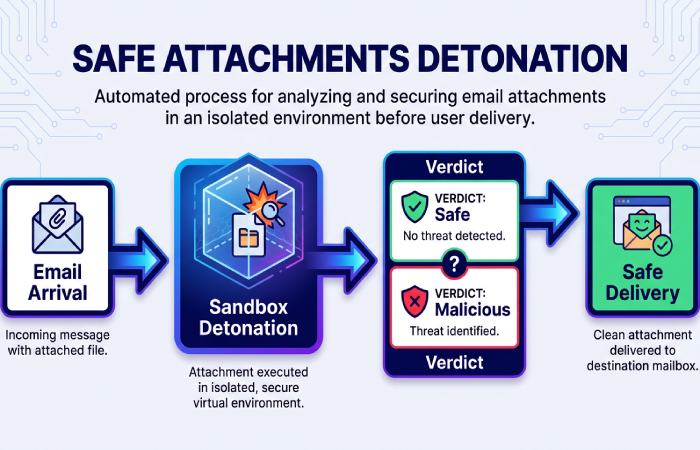
- Safe Attachments: Files are detonated in an isolated sandbox to detect exploits, embedded macros, and obfuscated payloads. Messages are held until verdicts are known, and malicious content is removed, supporting robust data protection for sensitive conversations and productivity apps like Outlook and Teams.
Together, these capabilities provide always-on protection that outpaces commodity antivirus filters and rivals what third-party vendors such as Norton or McAfee market as advanced email security.
File and Collaboration Safety: OneDrive, SharePoint, and Teams Malware Scanning and Ransomware Controls
Malware Scanning and Ransomware Recovery
Defender for Office 365 extends virus protection into OneDrive, SharePoint, and Teams by scanning files at upload/download, sharing, and sync. When threats are detected, users see security notifications and admins receive security alerts, enabling swift threat removal before a malicious file spreads across personal devices, business devices, or Surface laptops running Windows.
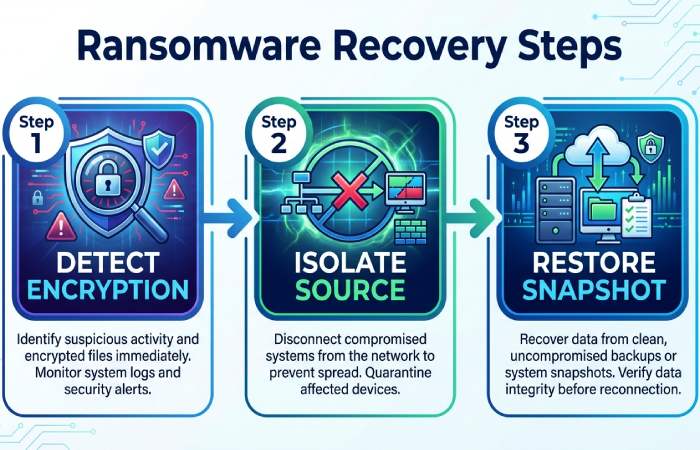
For ransomware, Microsoft 365 couples versioning and OneDrive restore with Microsoft Defender’s real-time monitoring to identify burst encryption patterns and guide recovery steps. If files are encrypted, admins can roll back to safe snapshots, maintain cloud storage integrity, and keep collaboration moving in Teams and OneNote. These ransomware controls integrate with device security telemetry from Defender for Endpoint to pinpoint the source host, closing the loop from email lure to file encryption attempt.
Setup and Best Practices: Licensing, Preset Security Policies, Configuration Tips, and User Education
Preset Policies and Configuration Tips
- Licensing: Defender for Office 365 P1/P2 can be licensed standalone or bundled in Microsoft 365 E5 or as part of add-on SKUs. Confirm your subscription and ensure Exchange Online is configured with modern authentication.
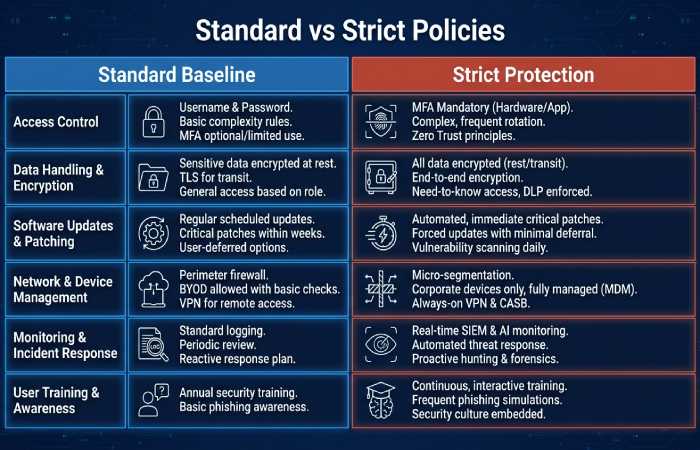
- Preset Security Policies: Use Standard as a baseline and Strict for high-risk users or admins. Presets accelerate deployment of anti-phishing, Safe Links, and Safe Attachments with proven defaults and security recommendations.
-
Configuration Tips:
- Enable Safe Links for email, Teams, and Office documents; enforce click-time protection for all users.
- Use Dynamic Delivery for Safe Attachments to minimize latency.
- Turn on impersonation protection for executives, payroll, and vendor domains.
- Create separate policies for high-value groups; apply Zero-Trust-aligned controls.
- Set user and domain impersonation lists; monitor security status and tune based on alerts and notifications.
- User Education: Train users to report suspicious emails, avoid enabling macros, and verify wire instructions out of band. Share security tips via Outlook add-ins and Teams channels, and encourage use of the Report Message button to improve the signal-to-noise ratio.
While identity theft monitoring, identity insurance, and credit monitoring are consumer features delivered by the Defender app to safeguard private information and family data protection on phone protection and computer protection scenarios, enterprises can mirror those principles by protecting identities in Entra ID, watching for compromised info, and using playbooks to restore identity access quickly after account takeovers.
Monitoring and Response: Alerts, Quarantine, Threat Explorer, Automated Investigation, and Reporting
Alerts, Threat Explorer, and Automated Response
- Security Alerts and Quarantine: Microsoft Defender generates high-fidelity security alerts for phishing, malware, and BEC attempts; alerts and notifications appear in the Microsoft 365 security dashboard and can flow to SIEM/SOAR. Quarantine policies let admins review, release, or delete items; end-user self-service reduces helpdesk load while maintaining online protection.
- Threat Explorer and Real-Time Detections: Threat Explorer (P2) offers search and pivot capabilities across mail flow, URLs, and attachments, showing campaign views and related security risk. Real-time monitoring highlights outbreak patterns and lateral movement across work devices and productivity apps.
- Automated Investigation and Response (AIR): AIR uses playbooks to contain threats, trigger threat removal, and orchestrate actions such as URL blocking, sender blocking, and mailbox remediation at scale. It correlates with device security insights from Defender for Endpoint to quarantine hosts and cut off malicious apps.
- Reporting and Insights: Rich reporting surfaces trends, top targeted users, and policy effectiveness. Security recommendations help you harden controls, track device activity history, and validate improvements in security status over time.
Context in the broader Microsoft ecosystem
- Integration with Azure: Signals from Azure and Microsoft 365 services bolster detections, while conditional access policies reduce blast radius.
- Copilot considerations: As Copilot for Microsoft 365 expands access to organizational data, Defender’s email and file protections become foundational to data protection and safe prompt contexts.
- Consumer and SMB angle: The Defender app brings multi-device protection, app monitoring, and always-on protection for personal devices—spanning phone protection and computer protection—with identity theft monitoring, credit monitoring, and identity insurance to help families safeguard private information and, where available, restore identity after fraud. Although you wouldn’t use email malware scanning on Xbox, the same Microsoft security DNA that protects a Surface laptop or Windows PC informs the professional-grade protection you get in Microsoft Defender for Office 365.
- Third-party comparison: Many organizations complement or replace legacy gateways (e.g., Norton or McAfee stacks) with Defender to consolidate cybersecurity controls, reduce complexity, and centralize alerts and notifications under one subscription.
By unifying service-layer antivirus, sophisticated anti-phishing, and collaboration-aware controls with real-time monitoring and actionable security alerts, Microsoft Defender for Office 365 delivers the professional-grade protection modern organizations expect across Microsoft 365 email and files.
Post-delivery defense and user empowerment
Beyond prevention: alerts, quarantine, ZAP, and automated investigation and response (AIR)
Even with strong antivirus and virus protection policies at the edge, adversaries evolve. Microsoft Defender for Office 365 adds post-delivery controls in Microsoft 365 to sustain real-time protection and online security when messages have already landed. Security alerts fire automatically when malware, phishing, or anomalous delivery patterns are detected, with incident correlation across email, identities, and devices in the unified security dashboard.
- Quarantine and review: Suspicious email is placed in quarantine based on policy, detonation verdicts, and machine learning. Admins get security notifications and can preview headers, URLs, and attachments safely, preserving data protection and forensics. End users can receive app notifications and a policy-driven ability to release or request release, improving security status without delaying business.
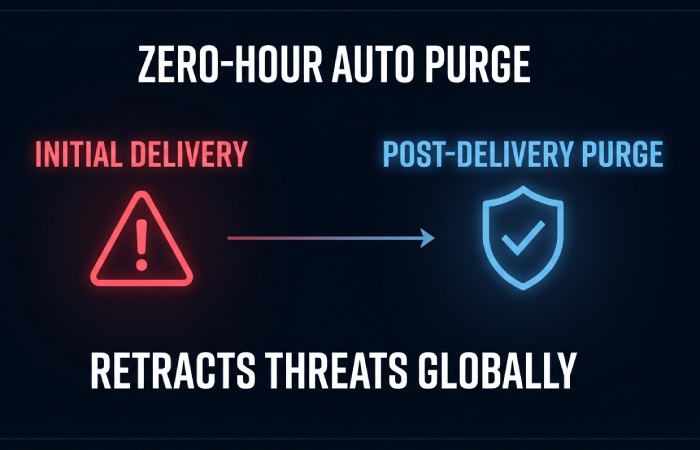
- Zero-hour Auto Purge (ZAP): As verdicts update within Microsoft’s threat intelligence graph, ZAP performs real-time protection by retracting previously delivered phishing and malware from inboxes, keeping Outlook and Microsoft Teams notifications safer after the initial delivery. ZAP also improves online security by cleaning up malicious links that were benign at the time of click.
- Automated Investigation and Response (AIR): AIR reduces mean-time-to-mitigate by running playbooks that scan for threats, contain campaigns, and remove malicious apps or block senders at scale. It leverages antivirus signals, threat detection heuristics, and URL detonation to neutralize security risk quickly while maintaining data protection.
- Alerts you can act on: Security alerts roll up in the Microsoft 365 Defender portal with a clear security overview and security activity history, allowing analysts to pivot from a single entity to campaign-level context. This brings always-on protection to your collaboration stack by tying incidents to device protection and identity signals.
These post-delivery capabilities complement traditional antivirus scanning and virus protection at the gateway, sustaining multi-device protection for users who work across Windows, Surface, and mobile endpoints.
Empowering users: impersonation protection, reporting phishing, Attack Simulation Training, and end-user quarantine
Modern phishing often impersonates executives, vendors, or cloud services to steal personal info and credentials, a common precursor to identity theft. Impersonation protection policies in Microsoft Defender analyze sender domains, display names, and behavioral patterns to stop online threats before users engage. When something slips through, users can report phishing from Outlook using the Report Message add-in; these reports create security alerts and enrich threat detection.
- Attack Simulation Training: Built-in simulations and training help users spot phishing, credential-harvesting, and malware lure techniques. Customized recommendations align with your security plan and reinforce security tips in context. Over time, organizations see fewer incidents and stronger identity protection.
- End-user quarantine: With policy-based end-user quarantine, users can safely review items, understand why they were held, and request release, improving security online without overburdening admins. App notifications and clear guidance increase engagement, while admins retain data protection control and audit visibility.
Together, these features promote a culture of professional-grade protection where people understand security recommendations, keep real-time protection enabled, and reduce the chance of identity theft through better decisions.
Visibility and analytics
Threat Explorer, Advanced Hunting, message trace, and compliance audit logs
Threat Explorer (Explorer/Real-time detections) surfaces campaigns, phishing flows, malware families, and top targeted users across Microsoft 365. Analysts can pivot from indicators to mailboxes and devices for comprehensive device protection correlation, all from the security dashboard. Advanced Hunting provides Kusto-based queries across email, endpoints, and identities, empowering threat detection teams to build detections, review security activity history, and maintain a high-confidence security overview.
Message trace adds delivery-path clarity—transport rules, connectors, and filtering verdicts—so you can validate antivirus and virus protection outcomes and tune policies. Compliance audit logs record who released items from quarantine, changed anti-phishing policies, or altered data loss prevention, strengthening data protection and accountability. These analytics span workloads like Outlook, SharePoint, and OneDrive cloud storage, giving end-to-end online security visibility from click to containment.
Licensing and deployment
Plans, tiers, and deployment guidance: Business Premium, E3/E5, and Defender for Office 365 Plan 1 vs Plan 2
Choosing the right subscription matters. Microsoft 365 Business Premium (ideal for Small Business) includes Microsoft Defender for Office 365 Plan 1—Safe Links, Safe Attachments, anti-phish policies, basic reporting, and quarantine—delivering always-on protection for work devices and personal devices used for work. Microsoft 365 E3, paired with Defender for Office 365 Plan 1, covers core controls for productivity apps like Outlook, Microsoft Teams, OneNote, and OneDrive cloud storage.
Plan 2 (included with Microsoft 365 E5 or as an add-on) adds AIR, Threat Explorer, Automated Investigation, Advanced Hunting, Attack Simulation Training, and rich security dashboard capabilities—professional-grade protection and data protection for complex environments. For organizations with premium subscription needs, Plan 2 is the recommended security plan because it accelerates response and elevates security status with deeper analytics and security recommendations.
Deployment is straightforward: download app components where required, sign in to Defender, and get started using setup wizards. You’ll configure policies, enable ZAP, and integrate with Microsoft Edge click protection. For hybrid estates—Windows, macOS, and mobile—multi-device protection can be extended with Microsoft Defender for Endpoint to unify device protection, antivirus posture, and real-time protection across personal and business devices.
Third-party coexistence (Norton, McAfee, and others)
Many enterprises run layered controls. Microsoft Defender for Office 365 coexists with third-party gateways like Norton or McAfee, and with on-premises appliances. Maintain a single authoritative security dashboard in Microsoft 365 for email while ensuring connectors and transport rules don’t bypass ATP verdicts. On endpoints, Defender for Endpoint can run in passive mode alongside other AV, preserving device protection while you transition.
This flexible approach helps manage devices across work or life scenarios, supports customized recommendations, and ensures security support across Azure-hosted apps, Dynamics 365 notifications, and even developer flows in Visual Studio. Organizations using Windows 365 cloud PCs or collaborating via Microsoft Edge benefit from consistent online security without disrupting the user experience.
Best practices checklist and recovery playbook
Hardening tips to reduce successful phishing and malware
- Enable anti-phish with impersonation protection for executives and high-risk roles; add external tagging to reduce phishing success and identity theft.
- Turn on ZAP, Safe Links with click-time rewriting, and Safe Attachments with Dynamic Delivery for real-time protection, strong antivirus coverage, and virus protection in transit and at rest.
- Use strict SPF, DKIM, and DMARC; monitor DMARC aggregate reports for security notifications and security recommendations to improve data protection.
- Require MFA for admins and users; enforce Conditional Access in Azure AD to cut off compromised sessions and reduce security risk.
- Integrate Microsoft Defender for Endpoint to unify device protection, scan apps, remove malicious apps, and bring multi-device protection signals into the security dashboard.
- Regularly review security activity history and security overview; schedule Attack Simulation Training and deliver just-in-time security tips to reinforce cybersecurity awareness.
Recovery options: restore messages, files, and identity
When an incident occurs, prioritize containment and restoration:
- Email and files: Use Explorer to identify impacted users, purge with ZAP, and restore legitimate items from Recoverable Items in Outlook. For files, OneDrive cloud storage and SharePoint support version history and file restore to recover from malware encryption or destructive edits, strengthening data protection.
- Accounts and credentials: Reset passwords, revoke sessions, and review sign-ins. If credential phishing led to identity theft, use Microsoft Defender consumer features to monitor credit, receive compromised info alerts, and initiate credit monitoring. Where available, identity insurance can help with lost funds recovery, legal fee coverage, and expert fees as you restore your identity.
- Communication: Provide dashboard access to responders, send security notifications to stakeholders, and use Copilot to summarize incidents for executives and compliance teams.
Rapid triage checklist
- Validate the incident in the security dashboard; confirm affected users and devices.
- Launch AIR to scan for threats, purge messages, and block IoCs.
- Check message trace, audit logs, and security activity history; verify antivirus posture and real-time protection on endpoints.
- Restore clean content from OneDrive cloud storage and confirm security status before re-enabling normal mail flow.
Common pitfalls to avoid
- Loosening policies for VIPs: Reducing phishing protections for executives increases security risk and invites identity theft attempts.
- Ignoring third-party integrations: Misconfigured connectors can bypass online security controls and weaken data protection across productivity apps.
- Skipping user empowerment: Not enabling report phishing, end-user quarantine, or Attack Simulation Training erodes always-on protection and reduces threat detection fidelity.
- Underusing analytics: Neglecting message trace and audit logs leads to an incomplete security overview and missed learnings.
- Delayed onboarding: Failing to download app components, sign in to Defender, and get started quickly leaves gaps; ensure clear runbooks for managing devices across personal and business devices, and include security support contacts for escalations.
Key Takeaways
- Combine pre- and post-delivery controls—ZAP, quarantine, and AIR—to maintain real-time protection against phishing, malware, and credential theft.
- Use Explorer, Advanced Hunting, message trace, and audit logs for a complete security overview in the Microsoft 365 security dashboard.
- Choose the right subscription: Business Premium or E3 with Plan 1 for essentials; E5 or Plan 2 for professional-grade protection and faster response.
- Empower users with impersonation protection, report phishing, Attack Simulation Training, and end-user quarantine to reduce identity theft risk.
- Harden policies, integrate endpoint device protection, and leverage OneDrive cloud storage restore to preserve data protection during recovery.